Here is the real experience by our customer Mr.Gary Richardson on GM Tech 2 Scanner.
Bought the highest quality version as i didn't want to risk any issues with the device, and it all works fine and i do not regret my purchase.
It arrived pretty fast, but i got a £17 customs charge which i didn't realise i'd get.
First impression: the carry case is not the one shown in the photo's, which is annoying as the one in the photo's looks really good, With the cables and candi module stored underneath 2 flaps, the main unit and adaptors clipping in the top of the case etc.
What i got was a basic plastic case (with sharp metal catches) where everything is squashed in on one level in foam, it does the job i guess, but i'd really have prefered the better case i thought i was paying the extra £30 for.
I'd bought a genuine Ugreen rs232 to usb cable in advance, £10 off amazon, this is one of the few cables listed as working with the tech2, and it did, connects at highest speed with no issues at all.
The house power supply has an american plug on it (psu has a universal voltage of 100 to 250 volts)
i got worried when the tech2 wouldn't even turn on, then i noticed the plug had slightly pulled out of the adaptor i had to use, something we are not used to in england as our plugs fit the sockets very securely and are hard to accidentally pull out, so changing the plug is one of the first things to do...
The house psu runs pretty warm btw.
I did all the self tests and it passed them all with flying colours (except the usual HBCC test that gets ignored (used on some ford vehicles i believe) and the RS485 that has no loopback adaptor so will always fail)
I took it out to my car (a 2011 vauxhall meriva B) and plugged it in, it connected straight away and i asked it to give me a list of DTC's, i had been using an op-com before i got the Tech2 and the tech2 listed some old DTC's the op-com had never picked up, I cleared the DTC's, then tried the rest of the diagnostics available, i had no problems so far, i was able to move engine actuators (op-com can't do that on the meriva B) operate things remotely, saw the DPF was at 108% full, so went for a little drive and the tech2 showed the DPF regen in progress, got an exhaust temp of 650 degrees C during it)
However that test drive showed up the universal weakness of the clone tech2's, the internal power supply cuts out when you start the engine so the tech2 re-boots, this means there are a few diagnostic tests you can never do that involve starting the engine whilst the tech2 monitors things (unless you use external power to the tech2, which is advised against in all service manuals)
There is a solution, replace the internal power supply module with a better quality unit!!
There is also a highly recommended modification of removing the RS232 chip and putting a usb module in it's place so you have a direct USB connection to the tech2, rather than the 4 connections that are just begging to be caught and pulled apart whilst uploading software to the car.
These mods are on the tech2 wiki (google it)
I then tried to SPS to my car to add a new IPC... one of the reasons i bought the Tech2.
That's when discovered my car is not in the list of cars you use the tech2 to service program directly (the: connect tech2 to car, download data, take tech2 to computer, upload data, download software update, take tech2 back to car and upload the software method)
But i figured i could SPS using the tech2 in the J2534 pass thru mode... only my computer couldn't connect to the tech2 in that mode... remote view of the unit worked but not SPS... i figured the issue out tho...
The rs232 to usb adapter had been assigned to com port 7 when i plugged it in, i changed the com port to COM1
~windows / computer / device manager / ports (COM & LPT) and find the relevant port your rs232 adapter is on (it wont be listed as 'Tech2') and change it to port 1~
Now SPS in pass thru mode works perfectly, i updated the software in a few of the modules (i use GlobalTis 32b, the last offline version with full SPS capability, was released in 2012 i believe, and it had newer software than my 2011 car had in it)
Then i did an update of the BCM and IPC to allow the rain sensor i'd just wired in to be seen by the systems, I tried to add a new immobilizer key, but it refused the accept the new key, most likely the key is at fault.. as part of learning new keys is to delete the old ones from the system, and the tech2 added them back no problem.
I've also used the tech2 to connect to ford vehicles using some software called 'ForScan' it has the Tech2 listed as a J2534 pass thru devise and works fine with it, The pcmcia card that came with the Tech2 allowed it's self to be re-written (some people buying from other places find the card is locked and can't be re-written)
i used GlobalTis's card writer feature, it takes 40 minutes to write the card, but it works fine.
I'm very pleased with my Tech2 so far, the only thing that would make it perfect would be the carry case that's shown in the photo's, but that dosent affect how the actual devise works.
I'd recommend anyone buy their Tech2 from this shop, and i have pointed a few people who were interested in buying one here.
Thanks to Mr.Gary Richardson for his Experience sharing.
If you are interested in this Tech 2, please check here: http://www.obd2shop.co.uk/wholesale/obd2toolcouk-tech2-for-gm-best-quality.html

OBD2Shop.co.uk offers high-quality GM Tech 2 Scanners with best price.
Showing posts with label select best GM Tech 2. Show all posts
Showing posts with label select best GM Tech 2. Show all posts
Monday, 16 April 2018

Monday, 19 February 2018
How to Bleed ABS on Corvette with GM Tech II?
Bleeding ABS on Corvette with GM Tech II by following the next procedure.
Perform a manual or pressure bleeding procedure. If the desired brake pedal height results are not achieved, perform the automated bleed procedure below.
The procedure cycles the system valves and runs the pump in order to purge the air from the secondary circuits normally closed off during normal base brake operation and bleeding. The automated bleed procedure is recommended when air ingestion is suspected in the secondary circuits, or when the BPMV has been replaced.
Automated Bleed Procedure
Notice: The Auto Bleed Procedure may be terminated at any time during the process by pressing the EXIT button. No further Scan Tool prompts pertaining to the Auto Bleed procedure will be given. After exiting the bleed procedure, relieve bleed pressure and disconnect bleed equipment per manufacturer's instructions. Failure to properly relieve pressure may result in spilled brake fluid causing damage to components and painted surfaces.
1. Raise the vehicle on a suitable support.
2. Remove all four tire and wheel assemblies.
3. Inspect the brake system for leaks and visual damage. Refer to Brake Fluid Loss or Symptoms - Hydraulic Brakes. Repair or replace as needed.
4. Inspect the battery state of charge.
5. Install a scan tool.
6. Turn ON the ignition, with the engine OFF.
7. With the scan tool, establish communications with the EBCM. Select Special Functions. Select Automated Bleed from the Special Functions menu.
8. Bleed the base brake system.
9. Follow the scan tool directions until the desired brake pedal height is achieved.
10. If the bleed procedure is aborted, a malfunction exists. Perform the following steps before resuming the bleed
procedure:
- If a DTC is detected, refer to Diagnostic Trouble Code
(DTC) List and diagnose the appropriate DTC.
- If the brake pedal feels spongy, perform the conventional brake bleed procedure again.
11. When the desired pedal height is achieved, press the brake pedal in order to inspect for firmness.
12. Remove the scan tool.
13. Install the tire and wheel assemblies.
14. Inspect the brake fluid level.
15. Road test the vehicle while inspecting that the pedal remains high and firm.
Read a hot topic:
How to choose a better GM TECH2?
www.obd2shop.co.uk
Perform a manual or pressure bleeding procedure. If the desired brake pedal height results are not achieved, perform the automated bleed procedure below.
The procedure cycles the system valves and runs the pump in order to purge the air from the secondary circuits normally closed off during normal base brake operation and bleeding. The automated bleed procedure is recommended when air ingestion is suspected in the secondary circuits, or when the BPMV has been replaced.
Automated Bleed Procedure
Notice: The Auto Bleed Procedure may be terminated at any time during the process by pressing the EXIT button. No further Scan Tool prompts pertaining to the Auto Bleed procedure will be given. After exiting the bleed procedure, relieve bleed pressure and disconnect bleed equipment per manufacturer's instructions. Failure to properly relieve pressure may result in spilled brake fluid causing damage to components and painted surfaces.
1. Raise the vehicle on a suitable support.
2. Remove all four tire and wheel assemblies.
3. Inspect the brake system for leaks and visual damage. Refer to Brake Fluid Loss or Symptoms - Hydraulic Brakes. Repair or replace as needed.
4. Inspect the battery state of charge.
5. Install a scan tool.
6. Turn ON the ignition, with the engine OFF.
7. With the scan tool, establish communications with the EBCM. Select Special Functions. Select Automated Bleed from the Special Functions menu.
8. Bleed the base brake system.
9. Follow the scan tool directions until the desired brake pedal height is achieved.
10. If the bleed procedure is aborted, a malfunction exists. Perform the following steps before resuming the bleed
procedure:
- If a DTC is detected, refer to Diagnostic Trouble Code
(DTC) List and diagnose the appropriate DTC.
- If the brake pedal feels spongy, perform the conventional brake bleed procedure again.
11. When the desired pedal height is achieved, press the brake pedal in order to inspect for firmness.
12. Remove the scan tool.
13. Install the tire and wheel assemblies.
14. Inspect the brake fluid level.
15. Road test the vehicle while inspecting that the pedal remains high and firm.
Read a hot topic:
How to choose a better GM TECH2?
www.obd2shop.co.uk
Monday, 25 September 2017
How to select best GM Tech 2 diagnostic scanner with my Saab?
Attach 2 questions and answers to guide you on how to pick out a best GM Tech2 diagnostic programming tool.
Question 1: I am considering to buy a GM Tech 2 diagnostic scanner for use with my Saab. Which one of the ones have the best quality and is equipped with the latest software/hardware? Do you also sell USB port converter for the Tech 2?.
Answer 1: 4 versions of TECH2 are available, including: SP23-B3, SP23-B, SP23-C and SP23-1.
The same: they all have the same functions.
The differences:
SP23-B is the best quality Tech2 with Black Carry box, best quality more stable
SP23-B3 is the SP23-B best quality tech2 with carton box, also has the best quality
SP23-C is the same like SP23-B, it also including the Black carry box, but comes from another factory.
SP23-1 is the best price one, it is with carton box, will help you save much more money.
In conclusion:
If you wanna best quality and more professional, please can choose SP23-B, because it has a black carry box.
If you wanna best quality but wanna cheap one, can choose SP23-B3
If you wanna good quality and also cheaper, please choose SP23-1
The SAAB vehicle you can choose SAAB English card, it is the latest version.
The USB port converter for GM tech2? we are not available.
GM Tech2 has not region limitation.
Question 2:
Does the set sp23-b3 come with a cigarette lighter power cable?
Is the TIS 2000 SAAB suitable?
Which of the shipping options would you advise?
Answer 2: Yes. It includes 1 piece of 12V cigarette lighter power cable.
For Saab English card, we would ship the package with Saab TIS2000 with USB dongle to you.
DHL shipping is recommended and declare a lower price on the invoice help you clearance.
Good luck.
Question 1: I am considering to buy a GM Tech 2 diagnostic scanner for use with my Saab. Which one of the ones have the best quality and is equipped with the latest software/hardware? Do you also sell USB port converter for the Tech 2?.
Answer 1: 4 versions of TECH2 are available, including: SP23-B3, SP23-B, SP23-C and SP23-1.
The same: they all have the same functions.
The differences:
SP23-B is the best quality Tech2 with Black Carry box, best quality more stable
SP23-B3 is the SP23-B best quality tech2 with carton box, also has the best quality
SP23-C is the same like SP23-B, it also including the Black carry box, but comes from another factory.
SP23-1 is the best price one, it is with carton box, will help you save much more money.
In conclusion:
If you wanna best quality and more professional, please can choose SP23-B, because it has a black carry box.
If you wanna best quality but wanna cheap one, can choose SP23-B3
If you wanna good quality and also cheaper, please choose SP23-1
The SAAB vehicle you can choose SAAB English card, it is the latest version.
The USB port converter for GM tech2? we are not available.
GM Tech2 has not region limitation.
Question 2:
Does the set sp23-b3 come with a cigarette lighter power cable?
Is the TIS 2000 SAAB suitable?
Which of the shipping options would you advise?
Answer 2: Yes. It includes 1 piece of 12V cigarette lighter power cable.
For Saab English card, we would ship the package with Saab TIS2000 with USB dongle to you.
DHL shipping is recommended and declare a lower price on the invoice help you clearance.
Good luck.
Subscribe to:
Posts (Atom)
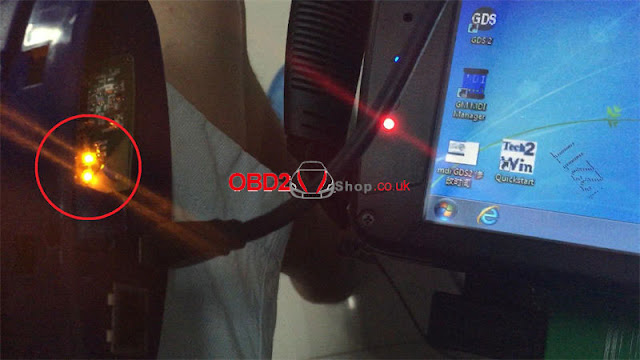
How to Configure GM MDI 2 Wireless Connection Settings?
This is a guide on how to configure GM MDI 2 Multiple Diagnostic Interface wireless connection settings. 4 steps to easy finish. 1. Connect ...
-
 Here is the GM TECH 2 PATHING DOCUMENT that every TECH 2 Owner should have. You work BACKWARDS from what you want to see. See the atta...
 -
I have successfully unlocked the radio on my Chevy TrailBlazer with a GM Tech 2 scanner clone from China yesterday. Here I would like to sh...
-
 In this post, I want to share a successful experience from a customer. He updated his Opel/Vauxhall CD30/CD30 MP3 to CDC40 with the GM Tech ...