What's the difference among GM MDI, VCX Nano GM cable & Tech2, other than price, and what's the similarity?
@ Dcasole review:
None the MDI and the nano are just pass tru devices used to communicate with the car when using TECH II WIN
Make sure the VCX nano comes with software otherwise you will have to buy a license
I have one and use the GDS2 software for my C7 and the Tech II win for all my buddies C6 ...came with hacked software that runs in a VM machine.
Mine came on a CD, I know why they offer it on a hard drive
The software can be a challenge to load if you don't know what you are doing
Tech II win and GDS2 was built to run on a 32 bit Windows 7 machine
I was able to get TECH ll Win to run on my Windows 10 64 bit machine but it's a crapshoot, some can't get it to run on Windows 10
I never got GDS2 to run in windows 10
There are not many of those old laptops around that have enough power to run the software so they give you a copy of VM ware ( virtual machine) and a copy of Windows 7 with all the software loaded so when you start the VM session, Windows 7 starts inside this shell and then you click on GDS2 for later cars or TECH II WIN for earlier models
So not to many people know how to load and run VM ware that is why they just copied all the software to a hard drive for you and then you just make a shortcut to your windows 10 desktop
Now its still not all plug and play as you need to allow VM ware Access to your USB ports etc which is not hard to do
You also need good hardware as VM ware uses a lot of resources
I tried it on an old Core Duo laptop and it was just to slow and crashed a lot
I bought an old Dell laptop Icore 5 with 16 gig of memory running Windows 10 and it runs the VM machine great
I bought my NANO from obd2shop.co.uk figuring if I could not get it to run I would just send it back. After about a week of messing with it I now have it running both flawlessly, stick with the USB version as the wireless version is just one more thing to complicate the install. The cable is not bad to use at all
VXDIAG VCX Nano GDS2 and Tech2Win...
So for $129 for the device and another $130 for the cheap laptop ......no trips to the dealer for me or my buddies ...I love it
@ Dcasole review:
The Tech II win running with vxdiag nano is the same exact software as what is on your Tech II hand held unit.
I had a Tech II knockoff but sold it when I got my C7. I was spoiled so now I wanted a GM MDI pass thru so I could work on my C7. That's when I decided to try the VX NANO .. Works great now that I got it running and having TECH II WIN is a bonus...
There is no better tool than a TECH II or GDS for diagnosing issues or accessing modules.
@ wjnjr review:
I agree. And with the prices now you can get a Tech2 or a VCX Nano & laptop setup for the same or less $$$ than the better 3rd party scan tools which won't do as much.
To be upgrading...
http://blog.obd2shop.co.uk/reviews-on-the-difference-among-gm-mdi-vcx-nano-tech2/

OBD2Shop.co.uk offers high-quality GM Tech 2 Scanners with best price.
Showing posts with label GM Tech II. Show all posts
Showing posts with label GM Tech II. Show all posts
Monday, 20 April 2020

Sunday, 6 October 2019
GM Tech2 clone works great for C5 (99) Corvette
GM Tech2 clone works great for C5 (99) Corvette: Automated Bleed, program done.
My new TECH2 device bought for £233.10
Here has a lot of folks give 5star, I believe folk's choice.
It is in perfect working order and has the screen cover.
Also included is the TIS2000 software which you will need to access the security to program keys


My Tech 2 (clone, works great) for my C5 (99) just for the Automated Bleed so I could completely flush the brake system particularly for the EBCM !!! Have since used the crap out of it, ECM/PCM re-learn, crank sensor re-learn etc !!!!
Also, use it to exercise my ABS motor every 3 months.
C5 has the built-in ability to pull vehicle specific DTC's right in the DIC and those can be exceptionally helpful in diagnosing and correcting common C5 issues.
There are a number of functions in addition to diagnostic troubleshooting that can be accomplished with the Tech II.
and another is the ability to program out unwanted features such as F45 or F55 RPO's ar program RPO's into a replacement BCM.
Do recognize that the tool has extremely limited ability to change settings in either the PCM or BCM. To accomplish change you need a programming tool such as HP Tuners or EFI Live and they can change only PCM settings.
they're very easy to use, just follow the display, and look around till you get tired, and try reading ''live data'' as much as you can, it speeds up the learning curve, and try it on as many GM cars/trucks as you can too.
GM Tech2 clone from:
https://www.obd2shop.co.uk/wholesale/cheap-tech2-with-caton-box-with-card-d.html
My new TECH2 device bought for £233.10
Here has a lot of folks give 5star, I believe folk's choice.
It is in perfect working order and has the screen cover.
Also included is the TIS2000 software which you will need to access the security to program keys
My Tech 2 (clone, works great) for my C5 (99) just for the Automated Bleed so I could completely flush the brake system particularly for the EBCM !!! Have since used the crap out of it, ECM/PCM re-learn, crank sensor re-learn etc !!!!
Also, use it to exercise my ABS motor every 3 months.
C5 has the built-in ability to pull vehicle specific DTC's right in the DIC and those can be exceptionally helpful in diagnosing and correcting common C5 issues.
There are a number of functions in addition to diagnostic troubleshooting that can be accomplished with the Tech II.
and another is the ability to program out unwanted features such as F45 or F55 RPO's ar program RPO's into a replacement BCM.
Do recognize that the tool has extremely limited ability to change settings in either the PCM or BCM. To accomplish change you need a programming tool such as HP Tuners or EFI Live and they can change only PCM settings.
they're very easy to use, just follow the display, and look around till you get tired, and try reading ''live data'' as much as you can, it speeds up the learning curve, and try it on as many GM cars/trucks as you can too.
GM Tech2 clone from:
https://www.obd2shop.co.uk/wholesale/cheap-tech2-with-caton-box-with-card-d.html
Monday, 19 February 2018
How to Bleed ABS on Corvette with GM Tech II?
Bleeding ABS on Corvette with GM Tech II by following the next procedure.
Perform a manual or pressure bleeding procedure. If the desired brake pedal height results are not achieved, perform the automated bleed procedure below.
The procedure cycles the system valves and runs the pump in order to purge the air from the secondary circuits normally closed off during normal base brake operation and bleeding. The automated bleed procedure is recommended when air ingestion is suspected in the secondary circuits, or when the BPMV has been replaced.
Automated Bleed Procedure
Notice: The Auto Bleed Procedure may be terminated at any time during the process by pressing the EXIT button. No further Scan Tool prompts pertaining to the Auto Bleed procedure will be given. After exiting the bleed procedure, relieve bleed pressure and disconnect bleed equipment per manufacturer's instructions. Failure to properly relieve pressure may result in spilled brake fluid causing damage to components and painted surfaces.
1. Raise the vehicle on a suitable support.
2. Remove all four tire and wheel assemblies.
3. Inspect the brake system for leaks and visual damage. Refer to Brake Fluid Loss or Symptoms - Hydraulic Brakes. Repair or replace as needed.
4. Inspect the battery state of charge.
5. Install a scan tool.
6. Turn ON the ignition, with the engine OFF.
7. With the scan tool, establish communications with the EBCM. Select Special Functions. Select Automated Bleed from the Special Functions menu.
8. Bleed the base brake system.
9. Follow the scan tool directions until the desired brake pedal height is achieved.
10. If the bleed procedure is aborted, a malfunction exists. Perform the following steps before resuming the bleed
procedure:
- If a DTC is detected, refer to Diagnostic Trouble Code
(DTC) List and diagnose the appropriate DTC.
- If the brake pedal feels spongy, perform the conventional brake bleed procedure again.
11. When the desired pedal height is achieved, press the brake pedal in order to inspect for firmness.
12. Remove the scan tool.
13. Install the tire and wheel assemblies.
14. Inspect the brake fluid level.
15. Road test the vehicle while inspecting that the pedal remains high and firm.
Read a hot topic:
How to choose a better GM TECH2?
www.obd2shop.co.uk
Perform a manual or pressure bleeding procedure. If the desired brake pedal height results are not achieved, perform the automated bleed procedure below.
The procedure cycles the system valves and runs the pump in order to purge the air from the secondary circuits normally closed off during normal base brake operation and bleeding. The automated bleed procedure is recommended when air ingestion is suspected in the secondary circuits, or when the BPMV has been replaced.
Automated Bleed Procedure
Notice: The Auto Bleed Procedure may be terminated at any time during the process by pressing the EXIT button. No further Scan Tool prompts pertaining to the Auto Bleed procedure will be given. After exiting the bleed procedure, relieve bleed pressure and disconnect bleed equipment per manufacturer's instructions. Failure to properly relieve pressure may result in spilled brake fluid causing damage to components and painted surfaces.
1. Raise the vehicle on a suitable support.
2. Remove all four tire and wheel assemblies.
3. Inspect the brake system for leaks and visual damage. Refer to Brake Fluid Loss or Symptoms - Hydraulic Brakes. Repair or replace as needed.
4. Inspect the battery state of charge.
5. Install a scan tool.
6. Turn ON the ignition, with the engine OFF.
7. With the scan tool, establish communications with the EBCM. Select Special Functions. Select Automated Bleed from the Special Functions menu.
8. Bleed the base brake system.
9. Follow the scan tool directions until the desired brake pedal height is achieved.
10. If the bleed procedure is aborted, a malfunction exists. Perform the following steps before resuming the bleed
procedure:
- If a DTC is detected, refer to Diagnostic Trouble Code
(DTC) List and diagnose the appropriate DTC.
- If the brake pedal feels spongy, perform the conventional brake bleed procedure again.
11. When the desired pedal height is achieved, press the brake pedal in order to inspect for firmness.
12. Remove the scan tool.
13. Install the tire and wheel assemblies.
14. Inspect the brake fluid level.
15. Road test the vehicle while inspecting that the pedal remains high and firm.
Read a hot topic:
How to choose a better GM TECH2?
www.obd2shop.co.uk
Subscribe to:
Posts (Atom)
How to Configure GM MDI 2 Wireless Connection Settings?
This is a guide on how to configure GM MDI 2 Multiple Diagnostic Interface wireless connection settings. 4 steps to easy finish. 1. Connect ...
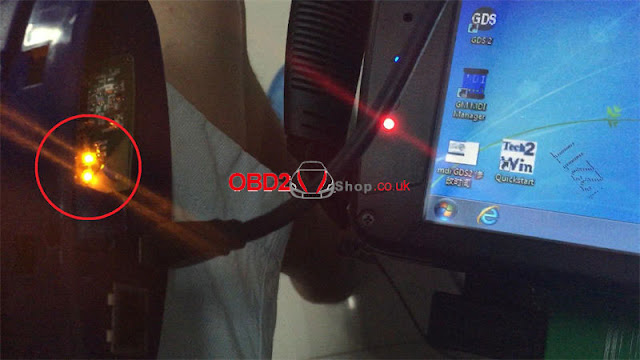
-
 Here is the GM TECH 2 PATHING DOCUMENT that every TECH 2 Owner should have. You work BACKWARDS from what you want to see. See the atta...
 -
I have successfully unlocked the radio on my Chevy TrailBlazer with a GM Tech 2 scanner clone from China yesterday. Here I would like to sh...
-
 In this post, I want to share a successful experience from a customer. He updated his Opel/Vauxhall CD30/CD30 MP3 to CDC40 with the GM Tech ...